

Colors & Theme
Pick colors for chat bubbles and backgrounds that match your brand.
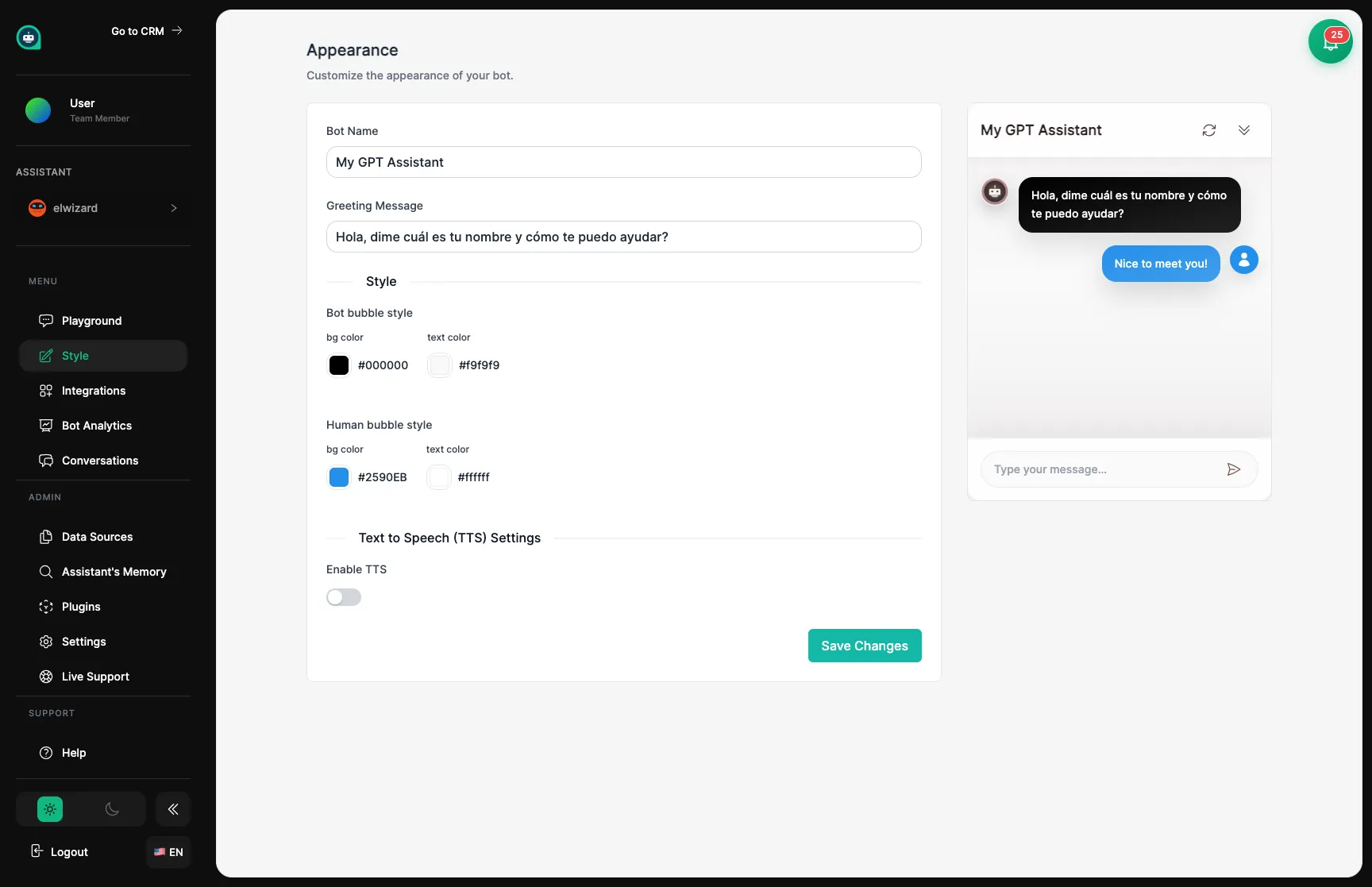
The Appearance section is where you customize how your assistant looks when chatting with customers. Think of it like choosing a uniform and name tag for a new team member – you want them to look professional and fit in with your brand.
Colors & Theme
Pick colors for chat bubbles and backgrounds that match your brand.
Name & Greeting
Choose what your assistant calls themselves and how they introduce themselves to visitors.
Position
Decide where the chat button appears on your website.
Voice
Let your assistant speak responses out loud with text-to-speech.
Start by giving your assistant a name and writing their greeting message – the first thing customers see when they open the chat. This is your assistant’s first impression, so make it welcoming and clear!
👋 Hi there! I’m here to help with any questions about our products. What can I help you with today?
Best for: Consumer brands, e-commerce, casual businesses
Welcome to [Company] Support. I can assist with product information, technical questions, and account inquiries. How may I help you?
Best for: B2B companies, enterprise, professional services
Hi! I’m your product specialist. Ask me anything about features, pricing, or getting started.
Best for: SaaS products, specific product support
Pick colors that match your website and brand. Your assistant should look like they belong on your team!
Assistant's Messages
Use your brand color here. Just make sure text is easy to read.
Customer's Messages
Keep these neutral (gray or white) so they stand out from your assistant’s replies.
Background
Light backgrounds usually work best for easy reading.
| Style | Assistant Color | Customer Color | Background | Works For |
|---|---|---|---|---|
| Professional | Navy Blue | Light Gray | White | Corporate, B2B |
| Friendly | Bright Blue | Light Gray | Off-white | Consumer apps |
| Bold | Brand Red | Dark Gray | White | Marketing sites |
| Minimal | Dark Gray | Light Gray | White | Clean, modern looks |
The preview panel shows exactly what your chat widget will look like to customers. Any changes you make show up instantly, so you can experiment until it looks just right.
Make a change in the customization panel
Check the preview on the right side
Try different backgrounds using the preview options
Save when you’re happy with how it looks
Want your assistant to speak their responses out loud? Enable text-to-speech and choose a voice that fits your brand.
OpenAI Voices
High-quality, natural-sounding voices with multiple options.
ElevenLabs
Premium voices with emotional range and custom voice options.
Browser Voices
Built-in browser voices. Free but more robotic sounding.
The standard spot. Most visitors expect to find chat widgets here.
✅ Recommended for most websites
Use this if bottom-right conflicts with other elements on your site.
⚠️ Less common, some visitors might miss it