

Position
Choose which corner of the screen your assistant appears in.
The Embed page gives you the code to add your assistant to your website. Once installed, your assistant appears as a friendly chat bubble that visitors can click to start a conversation – just like having a helpful team member available 24/7.
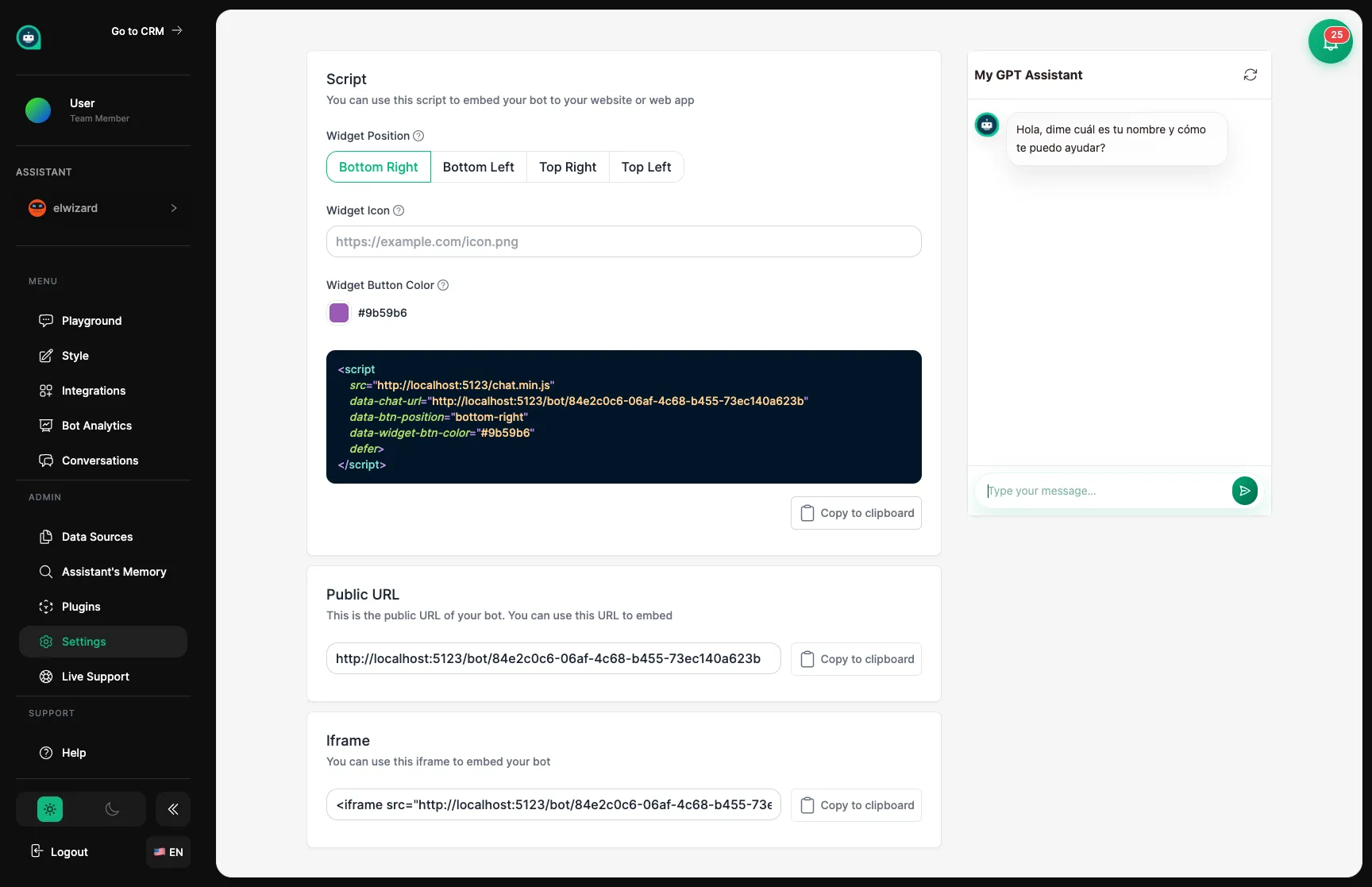
Copy the code snippet provided and paste it into your website. The code is unique to your assistant and includes all the styling you’ve set up in Appearance.
Copy the code from the Embed page in your dashboard
Open your HTML file in a code editor
Paste before </body>
<!-- Your Assistant Chat Widget --><script src="https://app.mygptassistants.com/widget.js" data-bot-id="YOUR_BOT_ID" async></script></body>Save and upload your website
Install a code plugin like “Insert Headers and Footers” or “WPCode”
Go to the plugin settings in your WordPress admin
Paste in the footer section
<script src="https://app.mygptassistants.com/widget.js" data-bot-id="YOUR_BOT_ID" async></script>Save your changes
Go to Online Store → Themes in Shopify admin
Click Actions → Edit code
Find theme.liquid in the Layout folder
Paste before </body>
<script src="https://app.mygptassistants.com/widget.js" data-bot-id="YOUR_BOT_ID" async></script>Save the file
Create a component for the chat widget:
import { useEffect } from 'react';
export default function ChatWidget() {  useEffect(() => {    const script = document.createElement('script');    script.src = 'https://app.mygptassistants.com/widget.js';    script.setAttribute('data-bot-id', 'YOUR_BOT_ID');    script.async = true;    document.body.appendChild(script);
    return () => {      document.body.removeChild(script);    };  }, []);
  return null;}
Then add it to your layout or app:
import ChatWidget from './components/ChatWidget';
export default function App() { return ( <> {/* Your app content */} <ChatWidget /> </> );}Create a component:
<script setup>import { onMounted, onUnmounted } from 'vue';
let script;
onMounted(() => {  script = document.createElement('script');  script.src = 'https://app.mygptassistants.com/widget.js';  script.setAttribute('data-bot-id', 'YOUR_BOT_ID');  script.async = true;  document.body.appendChild(script);});
onUnmounted(() => {  if (script) document.body.removeChild(script);});</script>
<template>  <!-- Component renders nothing --></template>
Add to your App.vue:
<template> <div id="app"> <!-- Your app content --> <ChatWidget /> </div></template>Squarespace:
Webflow:
Wix:
Listen for what’s happening with the chat widget:
// Know when customers interact with your assistantwindow.MGAWidget.on('open', () => {  console.log('Chat opened');});
window.MGAWidget.on('close', () => {  console.log('Chat closed');});
window.MGAWidget.on('message', (data) => { console.log('New message:', data);});Position
Choose which corner of the screen your assistant appears in.
Chat Icon
Customize the chat bubble that visitors click to start chatting.
Colors
Match the widget to your brand colors.
Add the code to your website using one of the methods above
Visit your website and look for the chat bubble
Click to open and have a test conversation
Check on mobile – make sure it works on phones and tablets too