

Refresh
Update website knowledge to get the latest information. Use this when your site has new content.
Just like onboarding a new employee, you need to share training materials with your assistant. The more relevant information you provide, the better they’ll be at helping your customers. Think of Data Sources as your assistant’s training binder – everything they need to know about your business goes here.
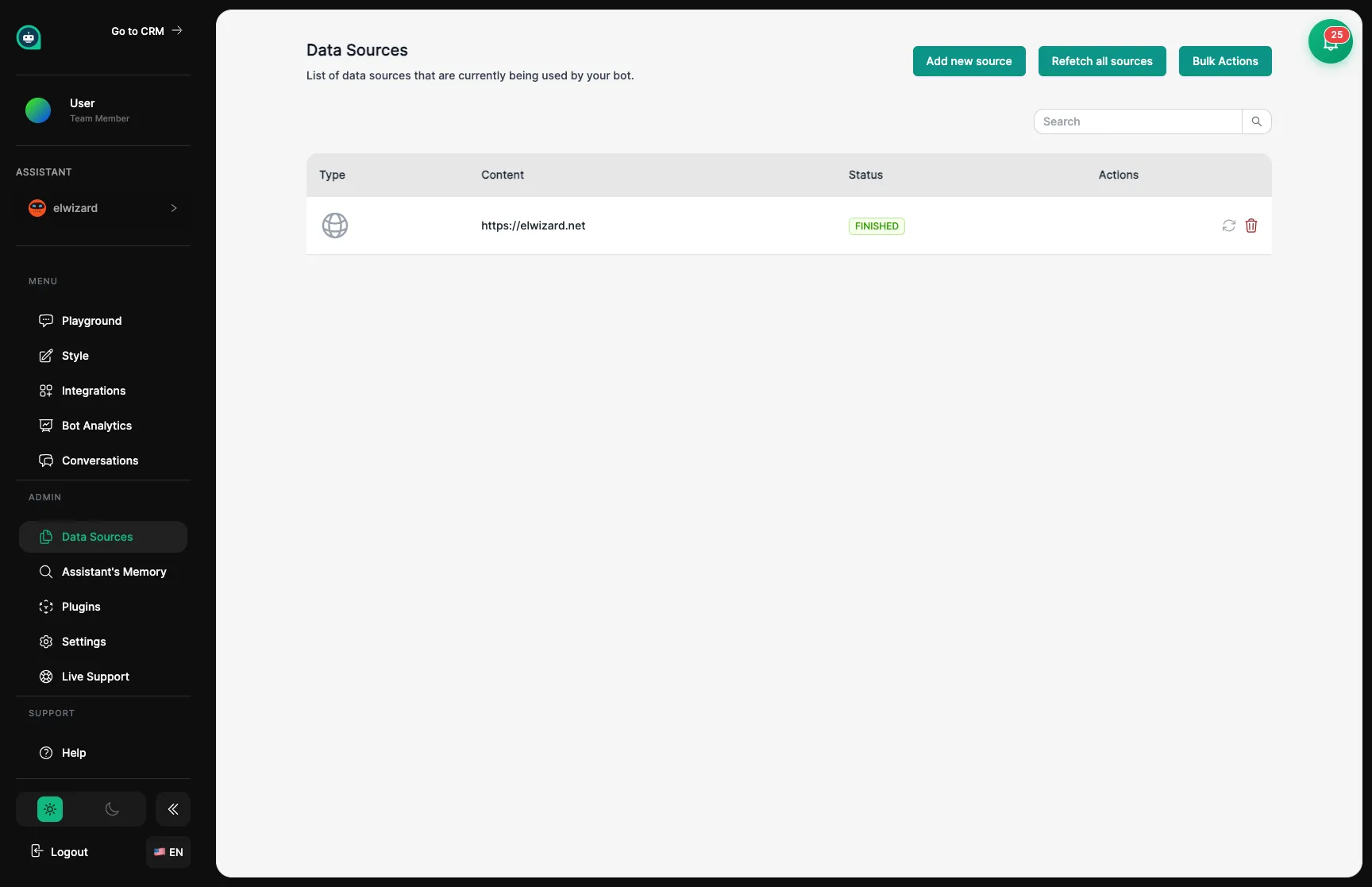
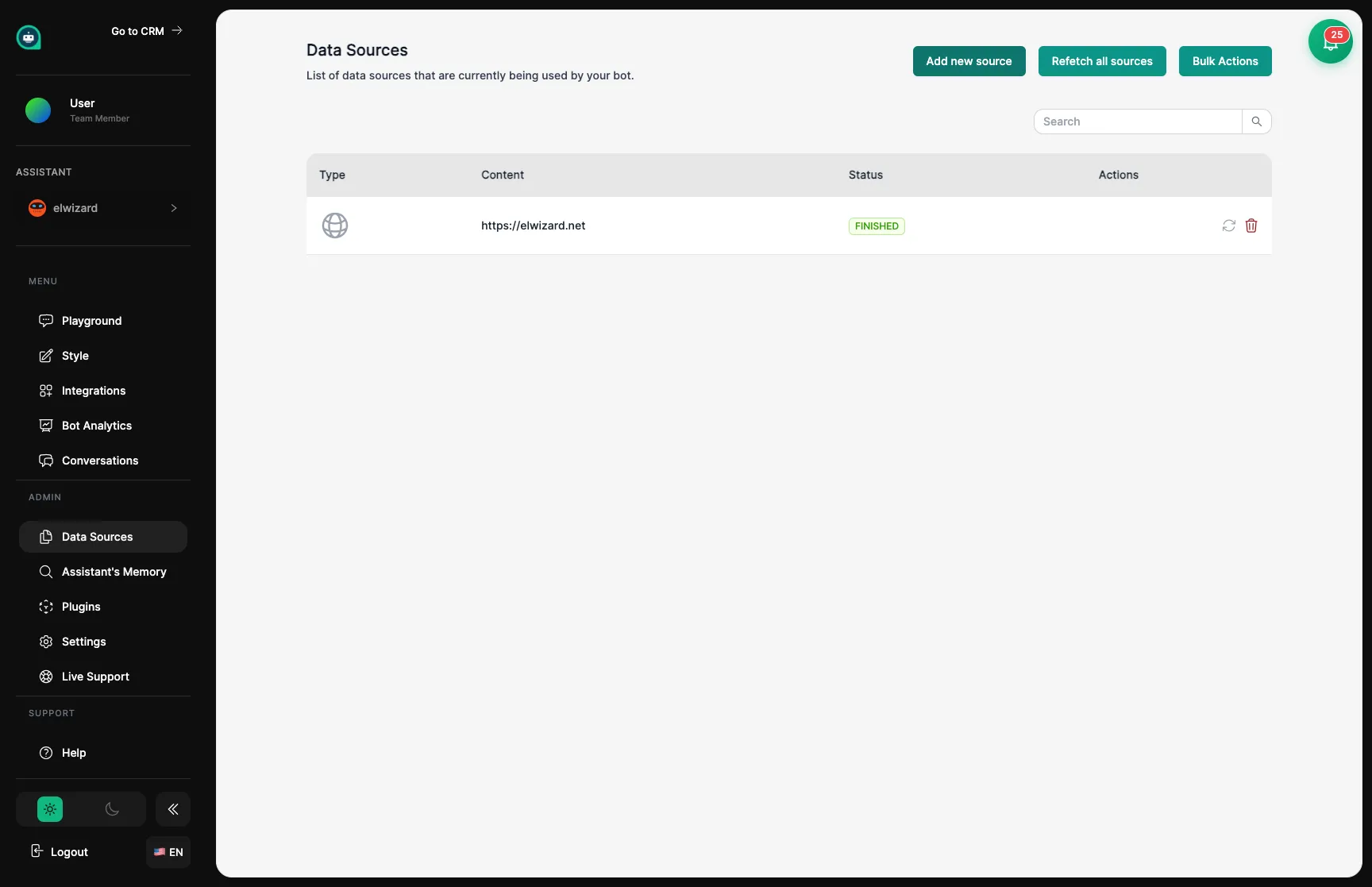
Click “Add new source” to open the data source selection modal. Choose from multiple source types including webpages, text, files, web crawlers, GitHub repos, YouTube videos, REST APIs, and sitemaps.
Share files like PDFs, Word documents, and text files. Perfect for:
Accepted formats: PDF, DOCX, DOC, TXT, MD
Point to your website and let your assistant read and learn from your pages. Great for:
Features:
New
Connect your Google Drive to let your assistant learn from your documents, spreadsheets, presentations, and shared files. Great for:
Click “Add Source” → Google Drive
Authorize access to your Google account
Select files or folders to train from
Enable auto-sync to stay current when files change
Type or paste information directly for quick updates. Perfect for:
Audio and video files that get automatically transcribed. Great for:
Accepted formats: MP3, MP4, WAV, M4A
Share the web address
Paste the URL of the website you want your assistant to study.
Set boundaries
Tell them how many pages to read (depth) and the maximum number of pages total.
Start the learning process
Click “Add Source” and your assistant will begin reading and memorizing the content.
Keep them updated (optional)
Turn on auto-sync so your assistant automatically learns when your website changes.
Keep your assistant’s training materials organized, just like you would for a new hire:
Refresh
Update website knowledge to get the latest information. Use this when your site has new content.
Remove
Take away outdated or incorrect materials. Keeps your assistant from giving old information.
Check Status
See if training is complete, in progress, or had any issues.
Use clear names
Label materials descriptively like “Product FAQ” not “Document 1”
Group related content
Organize by topic – it’s easier to manage and update later
Avoid duplicates
Repeating the same information can confuse your assistant
Test after training
Head to the Playground and ask questions to make sure they learned correctly