

Your Website
Popular
Add a chat bubble to your website. Visitors click it to start chatting with your assistant instantly.
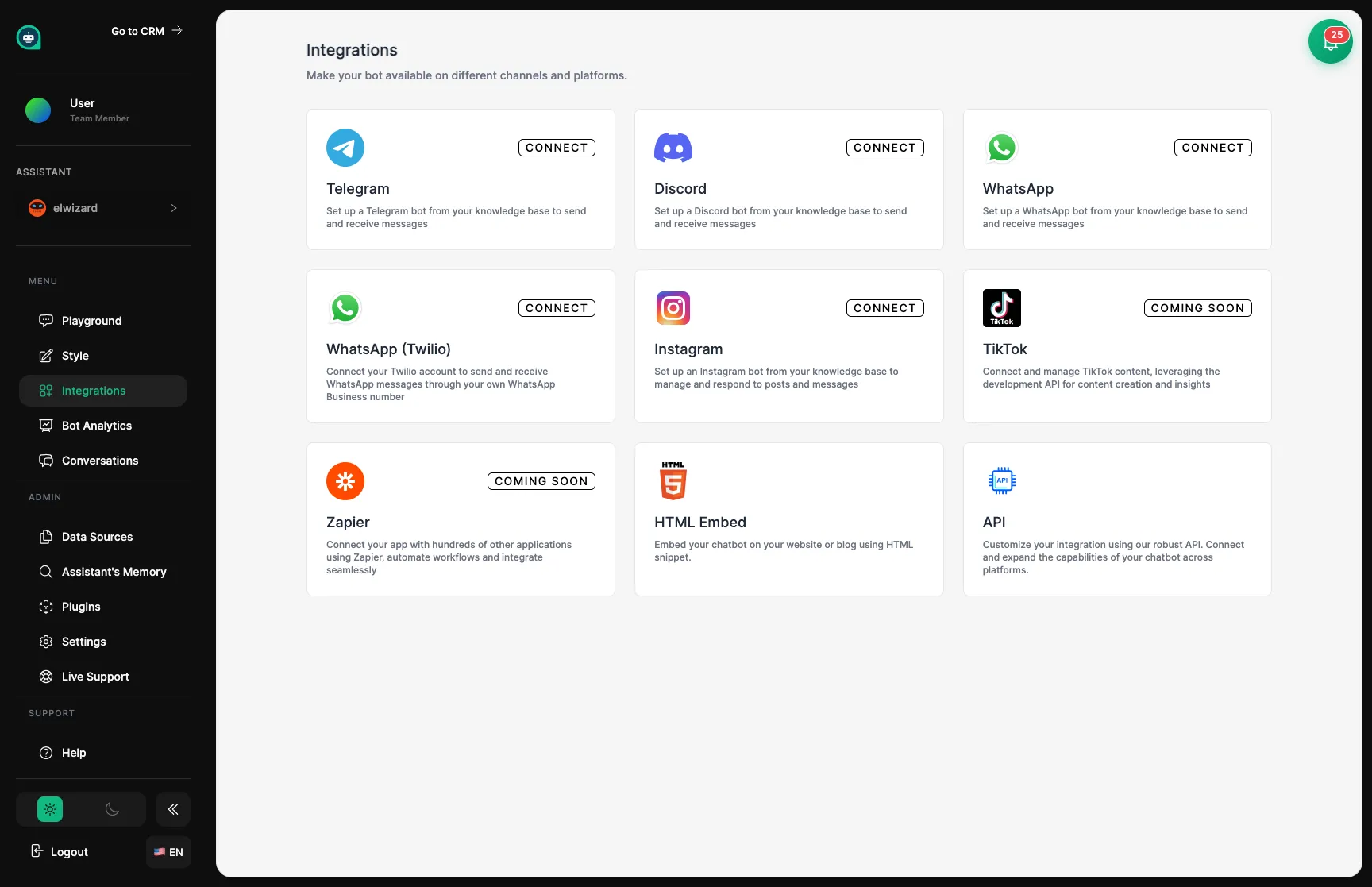
Integrations let you deploy your trained assistant to different places – your website, Instagram, WhatsApp, LinkedIn, and more. Think of it like assigning your team member to different locations where customers need help.
Your Website
Popular
Add a chat bubble to your website. Visitors click it to start chatting with your assistant instantly.
Instagram DMs
Popular
Your assistant answers Instagram direct messages automatically, helping customers 24/7.
Connect to WhatsApp by scanning a QR code — no Business API approval required. Your assistant replies to customers on their favorite messaging app.
Telegram
Deploy your assistant as a Telegram bot – great for communities and ongoing support.
Facebook Messenger
New
Connect your Facebook Page inbox so your assistant answers Messenger conversations automatically.
New
Your assistant handles LinkedIn direct messages, ideal for B2B outreach and lead qualification.
Discord
Add your assistant to Discord servers for gaming communities or tech support.
WordPress Plugin
Native Plugin
Install the native WordPress plugin for a seamless embed with a settings panel.
Custom Apps
The easiest way to deploy your assistant is adding them to your website. You get a small piece of code to paste into your site, and your assistant appears as a friendly chat bubble in the corner.
Go to the Embed page in your dashboard
Copy the code provided
Paste it into your website (before the closing </body> tag)
Test the chat on your live site
Connect your assistant to Instagram so they can respond to direct messages automatically.
Connect your Instagram Business account
Set up how your assistant should respond
Make sure your assistant knows common Instagram customer questions
Test by sending a DM to your own account
Connect to WhatsApp by scanning a QR code — no Business API approval or Meta verification required. Your WhatsApp session is linked directly through the QR code scan in your dashboard.
What You Need
What You Get
Open the WhatsApp integration in your dashboard
Scan the QR code with your WhatsApp app (Settings → Linked Devices)
Wait for the connection to activate (usually under 30 seconds)
Test by sending a message to the connected number
Connect your Facebook Page so your assistant automatically handles Messenger conversations.
Link your Facebook Page from the Messenger integration settings
Authorize the connection via Facebook’s OAuth flow
Test by messaging your Facebook Page from another account
Your assistant can respond to LinkedIn direct messages — ideal for B2B outreach, lead qualification, and professional customer support.
Connect your LinkedIn account from the LinkedIn integration settings
Authorize access to your LinkedIn messages
Test by sending a DM to your connected profile
Deploy your assistant as a Telegram bot.
Create a bot with @BotFather on Telegram
Copy the token you receive
Paste the token into your Telegram integration settings
Test your bot by messaging it on Telegram
For developers: use the API to integrate your assistant into your own applications.
Full Access
Complete control over conversations, contacts, settings, and analytics.
Real-Time Updates
Get instant notifications when new messages arrive or conversations start.
Code Libraries
Pre-built tools for JavaScript, Python, and other languages.
| Platform | Setup Time | Best For | What You Need |
|---|---|---|---|
| Website | 5 minutes | Most businesses | Access to edit your site |
| WordPress | 5 minutes | WordPress sites | Admin access to WP |
| 15 minutes | Social media brands | Business account | |
| 5 minutes | Customer support | Phone with WhatsApp | |
| Facebook Messenger | 15 minutes | Facebook businesses | Facebook Page admin |
| 10 minutes | B2B businesses | LinkedIn account | |
| Telegram | 10 minutes | Communities | Bot token |
| Discord | 10 minutes | Gaming/Tech communities | Server admin rights |
| Custom API | Varies | Unique needs | Development skills |